
Split Payments 1:N
Split Payments 1:N is a feature of Checkout Transparente (via Orders API) that allows you to split the value of an order between a primary seller and one or more secondary sellers, by fixed value or percentage, in a single buyer payment. With the splits array and the division rules configured in the order, Mercado Pago processes the payment and automatically distributes the amount among each participant; when the payment is processed, each participant receives their share in their own account.
To integrate Split Payments 1:N, the primary seller must establish a formal consent with each secondary seller. This consent generates the receiver_id that identifies each participant in the splits array when creating orders.
The main capabilities of Split Payments 1:N are:
- Payment split: configure fixed amounts or percentages for each participant, with up to 10 secondary sellers per order.
- Refunds: partial or full refund per participant without affecting others, or a full order refund with a single request.
- Reconciliation: Split Payments 1:N sales report and Released money report for reconciliation by
external_reference. - Validation: receiver, amount, user, and KYC compliance validations with clear responses to correct requests.
For more information on how to create your application and configure the development environment, see the documentation for Create application and Configure development environment.
To integrate Split Payments 1:N, you will need two Seller test accounts: one for your main application and another to act as the secondary participant that receives a share of the split. The data obtained from these accounts will be used later during the integration.
When you create an application, a test account of type Seller is automatically created, so you will only need to create a second test account to continue with the integration.
Test accounts are users who have the same functionalities as a real Mercado Pago user, but allow you to test the operation of your development without compromising real data.
Follow the steps below to create a seller test account.
- In Mercado Pago Developers, navigate to Your Integrations in the upper right corner of the screen, and click on the card corresponding to the application you are using for development.
- Having accessed "Application Details", go to Tests > Test Accounts in the left sidebar menu, and click the Create test account button.

- On the "Create new account" screen, select the country of operation of the account, bearing in mind that this information cannot be edited later.
- Next, enter a description to identify the account.
- Select the Account Type as Seller.
- Because it is a seller user, it is not necessary to indicate any value for the available money.
- Accept the Privacy Statement and the Terms and Conditions, and click Create test account.

Get account data
Once you have both accounts created, you will need the User ID and the Username from those accounts to continue with the integration.
When creating the accounts, you will have access to two identifiers: the User ID, a numeric identifier used in the splits array when configuring the split payment, and the Username, an alphanumeric identifier automatically assigned by Mercado Pago and used to compose the invitation email when configuring the split consent in tests.
To obtain this data, follow the steps below.
- In the integration data you created in Create application, go to Test > Test accounts.
- In the account tabs, click on Seller.
- In the table shown, after the country indicator, you will find the User ID followed by the Username (in TEST+digits format) for each test Seller account.
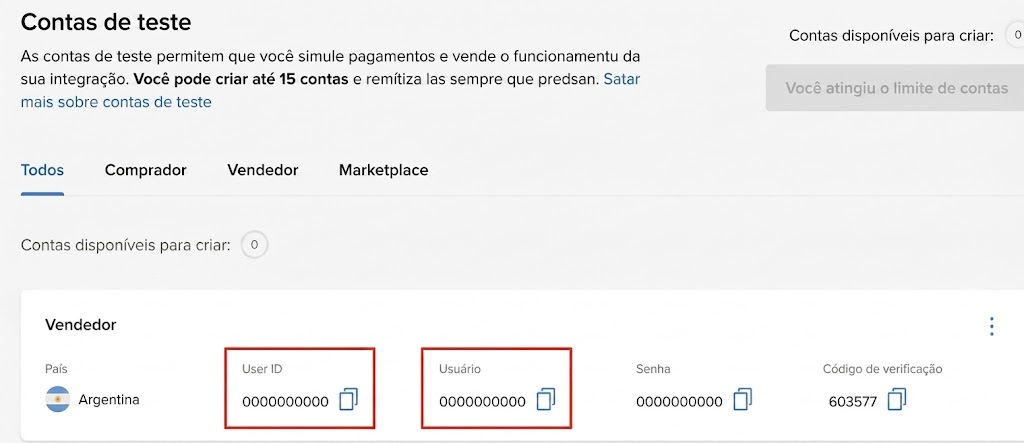
With this information, continue with the split consent configuration.
Before including a secondary seller in a split order, the primary seller must create a formal consent with that seller. The secondary seller must explicitly accept the terms through the Mercado Pago interface.
This flow generates the receiver_id, a unique identifier in UUID format, that identifies each secondary seller in all Split Payments 1:N operations and must be used to create orders.
The consent must have ACTIVE status before including the secondary seller in a split order. Attempts with a different status will return a validation error.
The possible statuses for a consent are:
| Status | Description |
PENDING | Invitation created. Waiting for the secondary seller's response. The invitation expires if there is no response within the time limit (by default, 30 days from creation; configurable per invitation). |
ACTIVE | Secondary seller accepted the operational link. A consent in ACTIVE status has no expiration date: it remains valid indefinitely until one of the parties cancels it. |
REJECTED | Secondary seller rejected the link. |
CANCELED | Link revoked by the primary or secondary seller. |
EXPIRED | No consent response within the established time limit (by default, 30 days). A new invitation must be created to resume the link. |
When working with test accounts (required during the integration testing process), you can use the x-test-status header when sending a request to the endpoint /v1/split-consentPOST to force the consent directly to the status you need to test, without the secondary seller having to intervene manually. If the header is not sent, the API will default to PENDING status.
This mechanism allows you to simulate all possible scenarios in the consent lifecycle during development.
The secondary seller's email must follow the format
{USERNAME}@testuser.com, otherwise invitations will be rejected with the INVITE_NOT_AVAILABLE error. All requests made in sandbox with test account tokens must include the header
x-test-token: true because without it, the API treats the call as if it were production and rejects it.Remember that the header
x-test-status is exclusive to the test environment and has no effect in production. See Go to production to learn how to replace it with the real flow.Create invitation
To create a consent, send a request to the endpoint /v1/split-consentPOST with the secondary seller's test email in the format {USERNAME}@testuser.com in the invites node.
Since the email acceptance flow does not work for test accounts, include the header x-test-status: ACTIVE so the consent is created directly with that status. The receiver_id field is always returned, regardless of the status.
curlcurl --request POST \
  --url https://api.mercadopago.com/v1/split-consent \
  --header 'Content-Type: application/json' \
  --header 'Authorization: Bearer {{YOUR_ACCESS_TOKEN}}' \
  --header 'X-Idempotency-Key: {{SOME_UNIQUE_VALUE}}' \
  --header 'x-test-token: true' \
  --header 'x-test-status: ACTIVE' \
  --data '{
    "invites": [
      {
        "seller_email": "{USERNAME}@testuser.com"
      }
    ]
  }'
If creation is successful, the response will return the receiver_id, which is the UUID associated with the secondary seller and that you will use in the splits array when creating orders.
The consent status varies according to the header sent in the request. If you include x-test-status: ACTIVE, the consent will be created directly with ACTIVE status. Otherwise, the status will be PENDING until the secondary seller accepts the invitation.
You can simulate all lifecycle scenarios using the following values in the x-test-status header:
| Value | Resulting status |
ACTIVE | The secondary seller accepted the consent. |
REJECTED | The secondary seller rejected the invitation. |
CANCELED | The consent was canceled. |
EXPIRED | The invitation expired without a response. |
json{
  "succeeded": [
    {
      "seller_email": "{USERNAME}@testuser.com",
      "receiver_id": "550e8400-e29b-41d4-a716-446655440000",
      "status": "ACTIVE",
      "invite_url": "https://www.mercadopago.com/split/invite/550e8400"
    }
  ],
  "failed": []
}
To invite multiple sellers in a single request, add multiple objects with their respective emails (seller_email) to the invites node.
PENDING status expire after 30 days from creation if the secondary seller does not respond. You can customize this deadline per invitation using the expiration_days field inside each object of the invites array when creating the consent. Once the consent moves to ACTIVE, it has no expiration.With the obtained receiver_id, you can proceed to verify the consent status.
Verify consent status
To query consents, send a request to the endpoint /v1/split-consentGET with the status=ACTIVE query to filter the search.
curlcurl --request GET \
  --url 'https://api.mercadopago.com/v1/split-consent?status=ACTIVE' \
  --header 'Authorization: Bearer {{YOUR_ACCESS_TOKEN}}'
| Field | Description | Required | Example |
status | Query. String. Filter consents by operational status: PENDING, ACTIVE, REJECTED, CANCELED, EXPIRED. | Optional | ACTIVE |
receiver_id | Query. Unique identifier in UUID format that identifies each secondary seller. | Optional | |
limit | Query. Maximum number of consents to return. Limit of 100. | Optional | 10 |
offset | Query. Number of consents to skip. | Optional | 0 |
If successful, the response will be similar to the example below.
json{
  "paging": { "total": 1, "offset": 0, "limit": 20 },
  "results": [
    {
      "receiver_id": "550e8400-e29b-41d4-a716-446655440000",
      "seller_email": "{USERNAME}@testuser.com",
      "status": "ACTIVE",
      "created_at": "2026-01-26T10:00:00Z",
      "updated_at": "2026-01-26T14:00:00Z"
    }
  ]
}
Configure consent status notifications
To automatically track changes to a split consent's status, you can receive a Webhook notification for each transition without relying on the email sent to the primary seller or polling the API.
Configure the event on the application's general WebhooksApplication notification settings screen, available under Your integrations > Application details > Notifications > Webhooks. screen. Select the event in the Other events group, on the tab for the environment you want to configure —test or production— and enter the URL where you want to receive notifications.
In the Portuguese interface, select Split - Autorização under Outros eventos.

A notification is sent whenever the consent status changes, except when the initial invitation is created with status PENDING.
| Transition | status | action | canceled_by |
PENDING → ACTIVE | ACTIVE | consent.accepted | — |
PENDING → REJECTED | REJECTED | consent.rejected | — |
PENDING → EXPIRED | EXPIRED | consent.expired | — |
ACTIVE → CANCELED | CANCELED | consent.canceled | PP or PS |
PENDING → CANCELED | CANCELED | consent.canceled | PP |
The received notification will have a structure similar to the following:
json{
  "receiver_id": "7f8e9a1b-...",
  "status": "ACTIVE",
  "action": "consent.accepted",
  "canceled_by": null
}
| Field | Type | Description | Required | Example |
receiver_id | String (UUID) | Identifier of the secondary seller associated with the consent. | Always present | 7f8e9a1b-... |
status | String | New consent status: ACTIVE, REJECTED, EXPIRED, or CANCELED. | Always present | ACTIVE |
action | String | Event that triggered the notification: consent.accepted, consent.rejected, consent.expired, or consent.canceled. | Always present | consent.accepted |
canceled_by | String or null | Indicates who canceled the consent: PP for the primary seller or PS for the secondary seller. Returns null when the action is not consent.canceled. | Always present | null |
receiver_id if the Webhook notification fails or is delayed.For information about configuring notifications and validating their origin, see Configure notifications.
Test the acceptance flow via interface
In addition to forcing the status with x-test-status, you can also test the complete acceptance flow, simulating production behavior.
To do this, create the consent without the header x-test-status. The consent will have status PENDING and the response will include the invite_url:
curlcurl --request POST \
  --url https://api.mercadopago.com/v1/split-consent \
  --header 'Content-Type: application/json' \
  --header 'Authorization: Bearer {{YOUR_ACCESS_TOKEN}}' \
  --header 'X-Idempotency-Key: {{SOME_UNIQUE_VALUE}}' \
  --header 'x-test-token: true' \
  --data '{
    "invites": [
      {
        "seller_email": "test@testuser.com"
      }
    ]
  }'
The test secondary seller will receive an email from Mercado Pago with the invite_url link. To simulate acceptance, the secondary seller must access that link authenticated with their own test account on Mercado Pago. When doing so, they will be directed to the acceptance or rejection screen in the Mercado Pago interface. The routing to the sandbox environment occurs automatically when the user is authenticated with a test account, with no additional configuration needed.
Cancel consent
To cancel an existing consent, send a request to the endpoint /v1/split-consent/{receiver_id}PATCH.
curlcurl --request PATCH \
  --url 'https://api.mercadopago.com/v1/split-consent/{receiver_id}' \
  --header 'Content-Type: application/json' \
  --header 'Authorization: Bearer {{YOUR_ACCESS_TOKEN}}' \
  --data '{"status": "CANCELED"}'
The primary seller can cancel consents with status PENDING or ACTIVE, while the secondary seller can reject an invitation (PENDING → REJECTED) or cancel an active consent (ACTIVE → CANCELED). All secondary seller actions on the consent status are performed exclusively through the Mercado Pago interface, not via API.
receiver_id becomes invalid and cannot be used in new split orders.To check possible consent API errors, see the Possible errors section of this documentation.
To create an order with Split Payments 1:N, send a request to the endpoint :TagComponent with the data of the involved sellers and the chosen payment method information.
You can offer payments with credit card, debit card, and Pix.
Credit and debit card
1. Get the card token
The token field in the request body is a secure representation of the card data, generated with MercadoPago.js. Make sure you have configured the development environment before continuing.
To generate the token on your application's frontend, use the createCardToken method of the MercadoPago.js instance:
javascriptconst token = await mp.fields.createCardToken({
  cardholderName: "APRO",
  identificationType: "CPF",
  identificationNumber: "12345678909"
});
// Use token.id as the value of the "token" field in the backend request
2. Create the order
Send a request to the endpoint /v1/ordersPOST, replacing {{OWNER_USER_ID}} with the numeric user_id of the primary seller (visible in Integration data > Details > User IDNumeric identifier of your Mercado Pago account, visible in Integration data > Details.) and {{PARTNER_CONSENT_UUID}} with the UUID generated by the consent API /v1/split-consentPOST for the secondary seller.
identification.type field varies by country: use CPF for Brazil and DNI for Argentina and Colombia.curlcurl --request POST \ --url https://api.mercadopago.com/v1/orders \ --header 'Content-Type: application/json' \ --header 'Authorization: Bearer {{YOUR_ACCESS_TOKEN}}' \ --header 'x-idempotency-key: {{SOME_UNIQUE_VALUE}}' \ --header 'x-meli-session-id: {{YOUR_DEVICE_ID}}' \ --data '{ "type": "online", "external_reference": "ext_ref_1234", "total_amount": "500.00", "processing_mode": "automatic", "payer": { "email": "test@testuser.com", "first_name": "APRO", "last_name": "Test", "entity_type": "individual", "identification": { "type": "CPF", "number": "12345678909" } }, "transactions": { "payments": [ { "amount": "500.00", "payment_method": { "id": "master", "type": "credit_card", "token": "your_card_token_here", "installments": 1, "statement_descriptor": "MYSTORE" } } ] }, "config": { "split_rules": { "amount_type": "fixed" } }, "splits": [ { "receiver_id": "{{OWNER_USER_ID}}", "receiver_type": "owner", "amount": "350.00", "description": "Primary seller" }, { "receiver_id": "{{PARTNER_CONSENT_UUID}}", "receiver_type": "partner", "amount": "150.00", "description": "Secondary seller" } ], "items": [ { "title": "Sample product", "description": "Product description", "category_id": "electronics", "quantity": 1, "unit_price": "500.00" } ], "integration_data": { "integrator_id": "dev_123", "platform_id": "1234567890" } }'
| Parameter | Type | Description | Required | Example |
Authorization | Header | Test access tokenPrivate key of the application created in Mercado Pago, used in the backend. You can access it in Your integrations > Application details > Tests > Test credentials.Test credentials Format: Bearer {{YOUR_ACCESS_TOKEN}}. | Required | Bearer {{YOUR_ACCESS_TOKEN}} |
x-idempotency-key | Header | Unique identifier (UUID) to ensure request idempotency. | Required | 550e8400-e29b-41d4-a716-446655440000 |
x-meli-session-id | Header | Device ID of the buyer's device. Needed to improve payment approval. | Required | {{DEVICE_ID}} |
splits | Body. Array | Array of objects defining the split participants. Maximum of 10 secondary sellers per order. | Required | |
splits.receiver_id | Body. String | Participant ID in the split. For the primary seller (receiver_type: "owner"), this is their numeric user_id as a string, visible in Integration data > Details > User IDNumeric identifier of your Mercado Pago account, visible in Integration data > Details.. For each secondary seller (receiver_type: "partner"), this is the UUID generated by the consent API /v1/split-consentPOST. | Required | |
splits.receiver_type | Body. String | Participant role. Possible values: "owner" for the primary seller and "partner" for secondary sellers. | Required | "owner" |
splits.amount | Body. String | The value assigned to this participant. | Required | "60.00" |
config.split_rules.amount_type | Body. String | Defines the unit of splits.amount values: "fixed" for exact monetary values or "percentage" for percentage values. | Required | "fixed" |
3. Verify the order
To confirm the order was processed correctly with the split, send a request to the endpoint /v1/orders/{id}GET, replacing {order_id} with the ID returned in the creation response and using your Test Access TokenPrivate key of the application created in Mercado Pago, used in the backend. You can access it in Your integrations > Application details > Tests > Test credentials.Test credentials.
curlcurl --request GET \
  --url https://api.mercadopago.com/v1/orders/{order_id} \
  --header 'Authorization: Bearer {{YOUR_ACCESS_TOKEN}}'
Make sure the returned status is "processed", the status_detail is "accredited", and that the splits array correctly reflects the receiver_id, receiver_type and amount values defined during creation.
json{
    "id": "ORDTST01K5HQXYKPDQTS6V0DXQ3ZVSFT",
    "processing_mode": "automatic",
    "external_reference": "ext_ref_1234",
    "site_id": "MLB",
    "currency": "BRL",
    "status": "processed",
    "status_detail": "accredited",
    "total_amount": "500.00",
    "splits": [
        {
            "receiver_id": "2366102316",
            "receiver_type": "owner",
            "amount": "350.00",
            "description": "Primary seller"
        },
        {
            "receiver_id": "550e8400-e29b-41d4-a716-446655440000",
            "receiver_type": "partner",
            "amount": "150.00",
            "description": "Secondary seller"
        }
    ]
}
status field returns "processing", the order is being processed asynchronously. In that case, wait for the final status by polling the /v1/orders/{id}GET endpoint or listening to Webhook notifications configured for the order topic. The final status will be either "processed" or "failed".After confirming the order was correctly created with the split, go to the Notifications section to track your transactions in real time.
Pix
1. Create the order with Pix
For Pix payments, send a request to the endpoint /v1/ordersPOST with the payer data and the split rules.
curlcurl --request POST \
  --url https://api.mercadopago.com/v1/orders \
  --header 'Content-Type: application/json' \
  --header 'Authorization: Bearer {{YOUR_ACCESS_TOKEN}}' \
  --header 'x-idempotency-key: {{UNIQUE_IDEMPOTENCY_KEY}}' \
  --data '{
  "type": "online",
  "external_reference": "ext_ref_1234",
  "total_amount": "500.00",
  "processing_mode": "automatic",
  "payer": {
    "email": "test@testuser.com",
    "first_name": "APRO",
    "last_name": "Test",
    "entity_type": "individual",
    "identification": {
      "type": "CPF",
      "number": "12345678909"
    }
  },
  "transactions": {
    "payments": [
      {
        "amount": "500.00",
        "payment_method": {
          "id": "pix",
          "type": "bank_transfer"
        },
        "expiration_time": "P1D"
      }
    ]
  },
  "config": {
    "split_rules": {
      "amount_type": "fixed"
    }
  },
  "splits": [
    {
      "receiver_id": "{{OWNER_USER_ID}}",
      "receiver_type": "owner",
      "amount": "350.00",
      "description": "Primary seller"
    },
    {
      "receiver_id": "{{PARTNER_CONSENT_UUID}}",
      "receiver_type": "partner",
      "amount": "150.00",
      "description": "Secondary seller"
    }
  ]
}'
After sending the request, the response will include the fields needed to make the payment available to the buyer. Use the ticket_url to redirect the buyer to a payment page, or render the qr_code_base64 directly on the screen. For more details on how to display Pix to the buyer, see Pix.
2. Verify the order
To confirm the order was processed correctly with the split, send a request to the endpoint /v1/orders/{id}GET.
curlcurl --request GET \
  --url https://api.mercadopago.com/v1/orders/{order_id} \
  --header 'Authorization: Bearer {{YOUR_ACCESS_TOKEN}}'
Once the buyer completes the Pix payment, the order will be updated with status: "processed" and status_detail: "accredited".
status field returns "processing", the order is being processed asynchronously. In that case, wait for the final status by polling the /v1/orders/{id}GET endpoint or listening to Webhook notifications configured for the order topic. The final status will be either "processed" or "failed".After confirming the order was correctly created with the split, go to the Notifications section to track your transactions in real time.
2. Create the order
Send a request to the endpoint /v1/ordersPOST, replacing {{OWNER_USER_ID}} with the numeric user_id of the primary seller (visible in Integration data > Details > User IDNumeric identifier of your Mercado Pago account, visible in Integration data > Details.) and {{PARTNER_CONSENT_UUID}} with the UUID generated by the consent API for the secondary seller.
| Parameter | Type | Description | Required | Example |
splits | Body. Array | Array of objects defining the split participants. Maximum of 10 secondary sellers per order. | Required | |
splits.receiver_id | Body. String | Participant ID. For the primary seller (receiver_type: "owner"), their numeric user_id as a string. For secondary sellers (receiver_type: "partner"), the UUID from the consent API. | Required | |
splits.receiver_type | Body. String | Participant role: "owner" for the primary seller, "partner" for secondary sellers. | Required | "owner" |
splits.amount | Body. String | Value assigned to this participant. | Required | "60.00" |
config.split_rules.amount_type | Body. String | "fixed" for monetary values or "percentage" for percentage values. | Required | "fixed" |
3. Verify the order
To confirm the order was processed correctly with the split, send a request to the endpoint /v1/orders/{id}GET.
curlcurl --request GET \
  --url https://api.mercadopago.com/v1/orders/{order_id} \
  --header 'Authorization: Bearer {{YOUR_ACCESS_TOKEN}}'
You must ensure the returned status is "processed", the status_detail is "accredited", and the splits array reflects the configured division, as in the example below:
status field returns "processing", the order is being processed asynchronously. In that case, wait for the final status by polling the /v1/orders/{id}GET endpoint or listening to Webhook notifications configured for the order topic. The final status will be either "processed" or "failed".After confirming the order was correctly created with the split, continue with notifications configuration in the Notifications section.
Configure 3D Secure (3DS)
To add 3DS authentication to Split Payments 1:N, see Integrate 3D Secure (3DS).
Notifications
To configure and receive Webhook notifications for your Split Payments 1:N orders, see Configure notifications.
The testing process allows you to verify if the configurations made during your integration work correctly, and if payments will be processed without errors, avoiding possible failures when making the checkout available to final buyers.
In this section you will find the steps needed to perform a test purchase with cards.
Perform a test purchase with cards
To test your integration with credit and/or debit cards you should perform a test purchase with these payment methods, simulating the actions of a buyer user.
To do this, access the store that has your checkout integrated, select a product or service, and start the purchase process.
1. Complete payer data
To make a successful test purchase, fill in the required data at checkout following the information indicated below.
Buyer email
In the email field, enter the email address test@testuser.com, which is the only one allowed for testing. This way, your system will understand that it is a purchase made with a test buyer user.
Card details
Mercado Pago provides test cards that will allow you to test payments without using a real card.
Their data, such as number, security code, and expiration date, can be combined with the data relating to the cardholder, which will allow you to test different payment scenarios. That is, you can use the information of any test card and test different payment results based on the cardholder's data.
Below, you can see the data of the test debit and credit cards. Select the one you want to use to test your integration.
| Card type | Flag | Number | Security code | Expiration date |
| Credit card | Mastercard | 5480 8328 0103 3311 | 123 | 11/30 |
| Credit card | Visa | 4235 6477 2802 5682 | 123 | 11/30 |
| Credit card | American Express | 3753 651535 56885 | 1234 | 11/30 |
| Debit card | Elo | 5067 7667 8388 8311 | 123 | 11/30 |
Next, choose which payment scenario to test and fill in the cardholder's information (First name and last name, Document type and number) as indicated in the table below.
| Payment Status | Cardholder’s first and last name | Identity document |
| Approved payment | APRO | (CPF) 12345678909 |
| Declined for general error | OTHE | (CPF) 12345678909 |
| Pending payment | CONT | - |
| Declined with validation to authorize | CALL | - |
| Declined for insufficient amount | FUND | - |
| Declined for invalid security code | SECU | - |
| Declined due to due date issue | EXPI | - |
| Declined due to form error | FORM | - |
| Rejected for missing card_number | CARD | - |
| Rejected for invalid installments | INST | - |
| Rejected for duplicate payment | DUPL | - |
| Rejected for disabled card | LOCK | - |
| Rejected for non-permitted card type | CTNA | - |
| Rejected due to exceeded PIN attempts | ATTE | - |
| Rejected for being on the blacklist | BLAC | - |
| Not supported | UNSU | - |
| Used to apply amount rules | TEST | - |
Once you have completed all the fields correctly, click the button to process the payment and wait for the result.
2. Verify test purchase
To verify that the test purchase was carried out according to the expected results based on the data entered, send a request to the /v1/orders/{id}GET endpoint, replacing id with the order identification, received in the response to its creation.
The response to this call should bring the detailed information of the test transaction, along with the status chosen for the payment in the previous step within the status field.
Once these steps are completed, the integration of cards as a payment method is complete and you can go to production.
These are transactions that occur when a specific charge is reversed and the paid amounts are returned to the transaction participants. You can refund specific participants without affecting the others' share, or process a full refund.
transactions and splits in the same refund request. For orders created with split, you must use only the splits object, indicating, for each participant who receives the refund, their receiver_id and the amount to be returned.To refund the total amount to all Split Payments 1:N participants, send a request to the endpoint :TagComponent with an empty body and your :toolTipComponent.
curlcurl --request POST \
  --url https://api.mercadopago.com/v1/orders/{order_id}/refund \
  --header 'Content-Type: application/json' \
  --header 'Authorization: Bearer {{YOUR_ACCESS_TOKEN}}'
If successful, the response will be similar to the example below.
json{
  "id": "ORD01J49MMW3SSBK5PSV3DFR32959",
  "status": "processed",
  "status_detail": "refunded",
  "transactions": {
    "refunds": [
      {
        "id": "REF01J49MMW3SSBK5PSV3DFR32959",
        "transaction_id": "PAY01JEVQM06WDW16MAQ8B5SC0MSC",
        "reference_id": "01JEVQM899NWSQC4FYWWW7KTF9",
        "amount": "24.50",
        "status": "processed"
      }
    ]
  }
}
To refund the total amount to a single participant, send a request to the endpoint /v1/orders/{order_id}/refundPOST and specify only their receiver_id.
curlcurl --request POST \
  --url https://api.mercadopago.com/v1/orders/{order_id}/refund \
  --header 'Content-Type: application/json' \
  --header 'Authorization: Bearer {{YOUR_ACCESS_TOKEN}}' \
  --data '{
  "splits": [
    {
      "receiver_id": "{{RECEIVER_ID_1}}"
    }
  ]
}'
| Parameter | Type | Description |
splits | Array | List of objects with the refund per participant. |
splits.receiver_id | String | receiver_id of the participant that will receive the refund. Same value used when creating the split order. |
If successful, the response will be similar to the example below.
json{
  "id": "ORD01J49MMW3SSBK5PSV3DFR32959",
  "status": "processed",
  "status_detail": "refunded",
  "transactions": {
    "refunds": [
      {
        "id": "REF01J49MMW3SSBK5PSV3DFR32959",
        "transaction_id": "PAY01JEVQM06WDW16MAQ8B5SC0MSC",
        "reference_id": "01JEVQM899NWSQC4FYWWW7KTF9",
        "amount": "24.50",
        "status": "processed"
      }
    ]
  }
}
To refund a specific amount to a single participant, send a request to the endpoint /v1/orders/{order_id}/refundPOST with the participant's receiver_id and the specific amount.
curlcurl --request POST \
  --url https://api.mercadopago.com/v1/orders/{order_id}/refund \
  --header 'Content-Type: application/json' \
  --header 'Authorization: Bearer {{YOUR_ACCESS_TOKEN}}' \
  --data '{
  "splits": [
    {
      "receiver_id": "{{RECEIVER_ID_1}}",
      "amount": "50.00"
    }
  ]
}'
| Parameter | Type | Description |
splits | Array | List of objects with the refund per participant. |
splits.receiver_id | String | receiver_id of the participant that will receive the refund. Same value used when creating the split order. |
splits.amount | String | Amount to refund to this participant. Monetary value, not percentage. |
If successful, the response will be similar to the example below.
json{
  "id": "ORD01J49MMW3SSBK5PSV3DFR32959",
  "status": "processed",
  "status_detail": "refunded",
  "transactions": {
    "refunds": [
      {
        "id": "REF01J49MMW3SSBK5PSV3DFR32959",
        "transaction_id": "PAY01JEVQM06WDW16MAQ8B5SC0MSC",
        "reference_id": "01JEVQM899NWSQC4FYWWW7KTF9",
        "amount": "50.00",
        "status": "processed"
      }
    ]
  }
}
To refund two or more participants at the same time, include more than one object in the splits array. Send a request to the endpoint /v1/orders/{order_id}/refundPOST with the receiver_id and specific amount for each participant.
curlcurl --request POST \
  --url https://api.mercadopago.com/v1/orders/{order_id}/refund \
  --header 'Content-Type: application/json' \
  --header 'Authorization: Bearer {{YOUR_ACCESS_TOKEN}}' \
  --data '{
  "splits": [
    {
      "receiver_id": "{{RECEIVER_ID_1}}",
      "amount": "50.00"
    },
    {
      "receiver_id": "{{RECEIVER_ID_2}}",
      "amount": "10.00"
    }
  ]
}'
| Parameter | Type | Description |
splits | Array | List of objects with the refund per participant. |
splits.receiver_id | String | receiver_id of the participant that will receive the refund. Same value used when creating the split order. |
splits.amount | String | Amount to refund to this participant. Monetary value, not percentage. |
If successful, the response will be similar to the example below.
json{
  "id": "ORD01J49MMW3SSBK5PSV3DFR32959",
  "status": "processed",
  "status_detail": "refunded",
  "transactions": {
    "refunds": [
      {
        "id": "REF01J49MMW3SSBK5PSV3DFR32959",
        "transaction_id": "PAY01JEVQM06WDW16MAQ8B5SC0MSC",
        "reference_id": "01JEVQM899NWSQC4FYWWW7KTF9",
        "amount": "50.00",
        "status": "processed"
      },
      {
        "id": "REF01J49MMW3SSBK5PSV3DFR32960",
        "transaction_id": "PAY01JEVQM06WDW16MAQ8B5SC0MSD",
        "reference_id": "01JEVQM899NWSQC4FYWWW7KTF8",
        "amount": "10.00",
        "status": "processed"
      }
    ]
  }
}
Split Payments 1:N has an exclusive report for the primary seller. For more information on how to create and configure the report, see the reports documentation.
The Mercado Pago split payments sales report records transactions made with Split Payments 1:N, including fees, settlements, and financial blocks per transaction. It is available for download in csv and json formats. You will also find data such as the total transaction amount, marketplace fee, Mercado Pago fee, and total money received.
Download report
To download the Mercado Pago split payments sales report, you need to configure it through the API. This process can be done in two ways: manually or automatically. In both options, some preliminary configurations are required as indicated below.
- Frequency.
- List of email addresses that will receive the report.
- List of columns or attributes to include.
Use the report
The report can be used as a reconciliation tool between the total transactions made with Split Payments 1:N and your systems or reconciliation tools. The report provides detailed information such as dates, concepts, status, amounts, and fees per transaction, as well as the identification of the responsible seller. It is especially useful for:
- Tracking sales with Split Payments 1:N during specific periods.
- Identifying sellers with the greatest economic impact.
- Establishing preferential fees based on sales volume.
- Coordinating collaborative campaigns with sellers.
- Evaluating the prevalence of different payment methods, such as debit card and credit card.
Use this report when you need detailed financial reconciliation between two specific dates.
The report is available exclusively via API. The available fields are described below, organized by category.
| Category | Field | Description |
| Seller identification | Collector | Seller ID (primary and secondary) |
| Seller identification | NickName | Seller User |
| Transaction identification | Orders ID | Order transaction number |
| Transaction identification | External_Reference | Reference ID provided by the seller |
| Transaction identification | Payment | Payment identification number |
| Transaction identification | Description Split | Description provided by the seller for each participant |
| Transaction identification | Status_Description | Approved | Rejected |
| Transaction identification | Status_Detail | Transaction status detail |
| Transaction identification | Date_Created | Transaction creation date |
| Transaction identification | Date_Approved | Transaction approval date |
| Values | Transaction_Amount | Total transaction amount |
| Values | Mercadopago_fee | Mercado Pago fee |
| Values | Financing_fee | Card financing fee |
| Values | Total_Paid_Amount | Total amount for the seller's portion |
| Values | Net_Received_Amount | Amount received by the seller after deductions |
| Payment method | Payment_Method_Type | Payment method used |
| Payment method | Installments | Number of installments |
| Payment method | BIN/Banco | Bank name and card brand |
| Payment method | sub_unit | Payment method sub-unit (e.g., QR) |
| Channel | Canal BUSINESS_UNIT | Purchase channel (e.g., In Store, Checkout Transparente) |
Secondary sellers do not have access to the Mercado Pago split payments sales report. To reconcile their transactions, they must use the standard Mercado Pago reports available in their own account:
- Released Money Report: contains the movements that affected the available balance, including credits received for participating in split transactions.
- Account Money Report: informs about transactions and movements that affected the account balance.
These reports contain all the information necessary for the secondary seller to identify and reconcile the amounts received.
When integrating Split Payments 1:N, the API may return validation errors with specific codes and messages. The errors are described below by topic along with the response format.
Errors use base types that translate to HTTP status codes:
| Base error type | HTTP status code | Description |
| TypeErrorClient | 400 | Bad Request. Client errors with specific messages for correctable problems. |
| TypeErrorInvalidInput | 400 | Bad Request. Invalid input data. |
| TypeErrorUnprocessable | 422 | Unprocessable Entity. Validation errors (user validation, compliance validation). |
| TypeErrorNotFound | 404 | Not Found. Resource not found. |
| TypeErrorInternal | 500 | Internal Server Error. Server-side errors. |
| TypeErrorUnavailable | 503 | Service Unavailable. Returned when external services are unavailable. |
| Validation name | Error code | HTTP status | Error message | Description |
| Missing primary receiver | TypeErrorClient | 400 | "primary receiver must be present in the split" | At least one receiver must be marked as primary. |
| Minimum secondary receivers | TypeErrorClient | 400 | "minimum of 1 secondary receiver is required" | At least one secondary receiver is required. |
| Duplicate receivers | TypeErrorClient | 400 | "there are users duplicated" | No user ID can appear more than once. |
| Seller limit exceeded | TypeErrorClient | 400 | "split contains more sellers than allowed" | Maximum of 10 secondary sellers per order. |
| Validation name | Error code | HTTP status | Error message | Description |
| Invalid percentage range | TypeErrorClient | 400 | "percentage must be between 1 and 100" | Each receiver's percentage must be between 1 and 100. |
| Invalid percentage sum | TypeErrorClient | 400 | "percentages must add up to 100.00" | The sum of all percentages must be exactly 100.00. |
| Invalid fixed amount sum | TypeErrorClient | 400 | "the sum of the amounts for the receivers must be equal to the total amount of the split" | The sum of all receiver amounts must equal the total split amount. |
| Validation name | Error code | HTTP status | Error message | Description |
| Invalid payment method type | TypeErrorClient | 400 | "invalid payment method type" | Allowed payment methods are credit card, debit card, and Pix (bank_transfer). |
| Validation name | Error code | HTTP status | Error message | Description |
| Duplicate item external codes | TypeErrorClient | 400 | "items list contains duplicate external code" | No two items can have the same external_code. |
| Invalid item reference | TypeErrorClient | 400 | "receiver references non-existent item" | All item references in receivers must correspond to existing items in the split. |
| Validation name | Error code | HTTP status | Error message | Description |
| User not found | TypeErrorUnprocessable | 422 | "user validation error" | The user ID does not exist in the system. |
| User not active | TypeErrorUnprocessable | 422 | "user validation error" | The user exists but is not in "active" state. |
| User site mismatch | TypeErrorUnprocessable | 422 | "user validation error" | The user's site ID does not match the seller's site ID. |
| User service unavailable | TypeErrorUnavailable | 503 | "service unavailable" | Network errors or timeout when calling the user service. |
| Seller using PNF mode | TypeErrorUnprocessable | 422 | "seller is using pnf mode, blocked" | The transaction is blocked if the seller is operating in PNF mode. |
| Validation name | Error code | HTTP status | Error message | Description |
| KYC compliance failure | TypeErrorUnprocessable | 422 | "compliance validation error" | The user is not compliant. |
| KYC service unavailable | TypeErrorUnavailable | 503 | "service unavailable" | Network errors or timeout when calling the KYC service. |
Errors that the consent API (/v1/split-consentPOST) may return when creating, querying, or canceling consents.
| Endpoint | Error code | HTTP | Description |
POST /v1/split-consent | CONSENT_ALREADY_EXISTS | 409 | An active or pending consent already exists between the primary and secondary seller. |
POST /v1/split-consent | INVITE_NOT_AVAILABLE | 409 | Invitation not available for this seller pair. |
POST /v1/split-consent | missing_idempotency_key | 400 | The X-Idempotency-Key header is required. |
POST /v1/split-consent | invalid_idempotency_key | 400 | X-Idempotency-Key must be a valid UUID v4. |
POST /v1/split-consent | idempotency_key_reused | 409 | The key has already been used with a different payload. |
POST /v1/split-consent | resource_locked | 423 | The key is being processed. Retry in a moment. |
POST /v1/split-consent | — | 207 | Partial result: at least one invitation succeeded and at least one failed. |
GET /v1/split-consent | CONSENT_NOT_FOUND | 404 | Consent not found. |
GET /v1/split-consent | UNAUTHORIZED | 403 | Unauthorized operation. |
PATCH /v1/split-consent/{receiver_id} | CONSENT_NOT_FOUND | 404 | Consent not found. |
PATCH /v1/split-consent/{receiver_id} | INVALID_TRANSITION | 409 | Invalid status transition. |
PATCH /v1/split-consent/{receiver_id} | UNAUTHORIZED | 403 | Only the primary seller or the linked secondary seller can cancel the consent. |
Errors returned by the Orders API when creating an order when consent validation fails. These are distinct from the errors of the /v1/split-consentPOST endpoint.
| Error code | HTTP | Message | Description |
CONSENT_NOT_FOUND | 422 | "consent not found between primary and secondary seller" | No consent exists between the primary seller and the secondary seller in the splits array. |
CONSENT_NOT_ACTIVE | 422 | "consent is not active" | The consent exists but is not in ACTIVE status. |
INVALID_RECEIVER_ID_FORMAT | 400 | "receiver_id must be a valid UUID for partner type" | The receiver_id of a participant with receiver_type: "partner" is not a valid UUID. |
DUPLICATE_OWNER | 400 | "only one owner receiver is allowed per request" | There is more than one receiver with receiver_type: "owner" in the splits array. |
OWNER_MISMATCH | 400 | "owner receiver_id must match the authenticated caller" | The owner's receiver_id does not match the authenticated user creating the order. |
| Validation name | Error code | HTTP status | Error message | Description |
| Internal server error | TypeErrorInternal | 500 | "internal server error" | Unexpected server-side error. |