
Make a test purchase with cards
With the test order created, use Mercado Pago test cards to simulate different payment results. Available scenarios include approved, rejected, and pending payments, allowing you to validate how your integration handles each situation before going to production.
Test a card purchase
To test a purchase with a credit or debit card, follow the steps below.
-
Open an incognito window and make sure you are not logged in to Mercado Pago.
-
Go to the store where you integrated Checkout Pro, select a product or service, and start the purchase process at the payment step.
-
When your integration creates the order and generates the
checkout_url, you will be redirected to the Mercado Pago payment form.
- Finally, complete a test purchase using the test card data in the next section. The cardholder name defines the simulated payment result.
Test cards
Mercado Pago provides test cards that will allow you to test payments without using a real card.
Their data, such as number, security code, and expiration date, can be combined with the data relating to the cardholder, which will allow you to test different payment scenarios. That is, you can use the information of any test card and test different payment results based on the cardholder's data.
Below, you can see the data of the test debit and credit cards. Select the one you want to use to test your integration.
| Card type | Flag | Number | Security code | Expiration date |
| Credit card | Mastercard | 5480 8328 0103 3311 | 123 | 11/30 |
| Credit card | Visa | 4235 6477 2802 5682 | 123 | 11/30 |
| Credit card | American Express | 3753 651535 56885 | 1234 | 11/30 |
| Debit card | Elo | 5067 7667 8388 8311 | 123 | 11/30 |
Next, choose which payment scenario to test and fill in the cardholder's information (First name and last name, Document type and number) as indicated in the table below.
| Payment Status | Cardholder’s first and last name | Identity document |
| Approved payment | APRO | (CPF) 12345678909 |
| Declined for general error | OTHE | (CPF) 12345678909 |
| Pending payment | CONT | - |
| Declined with validation to authorize | CALL | - |
| Declined for insufficient amount | FUND | - |
| Declined for invalid security code | SECU | - |
| Declined due to due date issue | EXPI | - |
| Declined due to form error | FORM | - |
| Rejected for missing card_number | CARD | - |
| Rejected for invalid installments | INST | - |
| Rejected for duplicate payment | DUPL | - |
| Rejected for disabled card | LOCK | - |
| Rejected for non-permitted card type | CTNA | - |
| Rejected due to exceeded PIN attempts | ATTE | - |
| Rejected for being on the blacklist | BLAC | - |
| Not supported | UNSU | - |
| Used to apply amount rules | TEST | - |
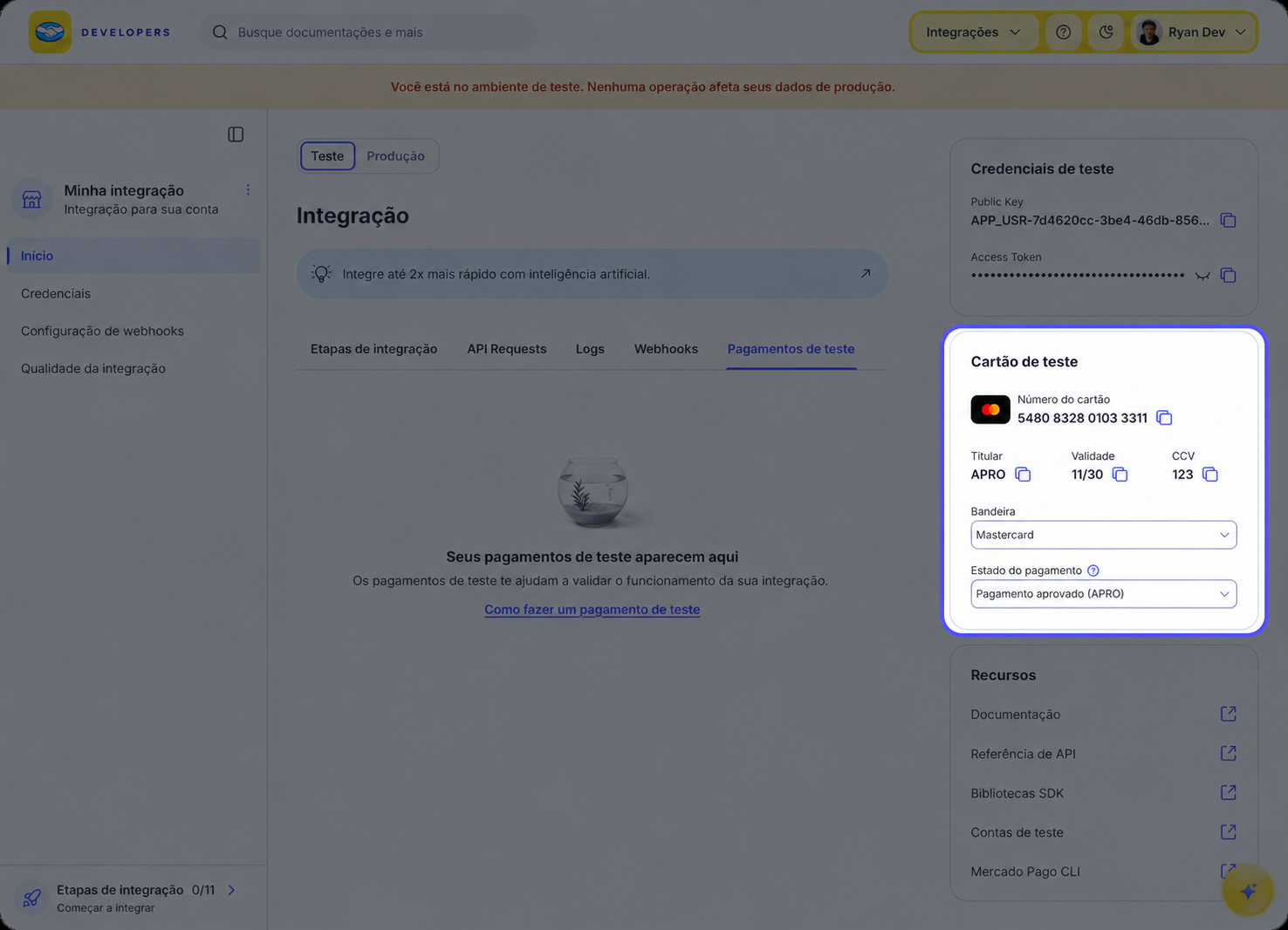
You can also view test cards from the Panel. In Integrations, select the application card and choose Test in the environment selector. You will find the Test card section on the right side of the screen.
Verify the result
To confirm the result of each test purchase, send a GET to the endpoint /v1/orders/{id}API including your test Access TokenPrivate key linked to an application, used in the backend to authenticate operations in the test environment. You can find it in the application's Credentials section, within the test environment. It cannot process real payments and must never be exposed in the frontend.:
curlcurl -X GET \
    -H 'Authorization: Bearer ENV_ACCESS_TOKEN' \
    'https://api.mercadopago.com/v1/orders/{id}'
Replace {id} with the id of the order obtained when creating it. The status field in the response will indicate the transaction result for the tested scenario. For all possible statuses, see the Order status documentation.
Alternatively, you can view the payment result from your application. To do this, go to Integrations and select the application card. Make sure Test is selected in the selector at the top and, on the Home screen, select the Test payments tab. Then, find the payment you made and click on it to view its details and status.