
Configure notifications
Webhooks notifications, also known as web callbacks, are an effective method that allows Mercado Pago servers to send information in real time when a specific event related to your integration occurs. Instead of your system constantly querying for updates, Webhooks allow the passive and automatic transmission of data between Mercado Pago and your integration through an HTTPS POST request, optimizing communication and reducing server load.
Below is a step-by-step guide to receiving payment notifications in integrations with Checkout Transparente. Once configured, Webhook notifications will be sent whenever an update occurs on the reported topic, including the creation and update of orders and transaction processing.
- Go to Integrations and select the application integrated with Checkout Transparente for which you want to activate notifications.
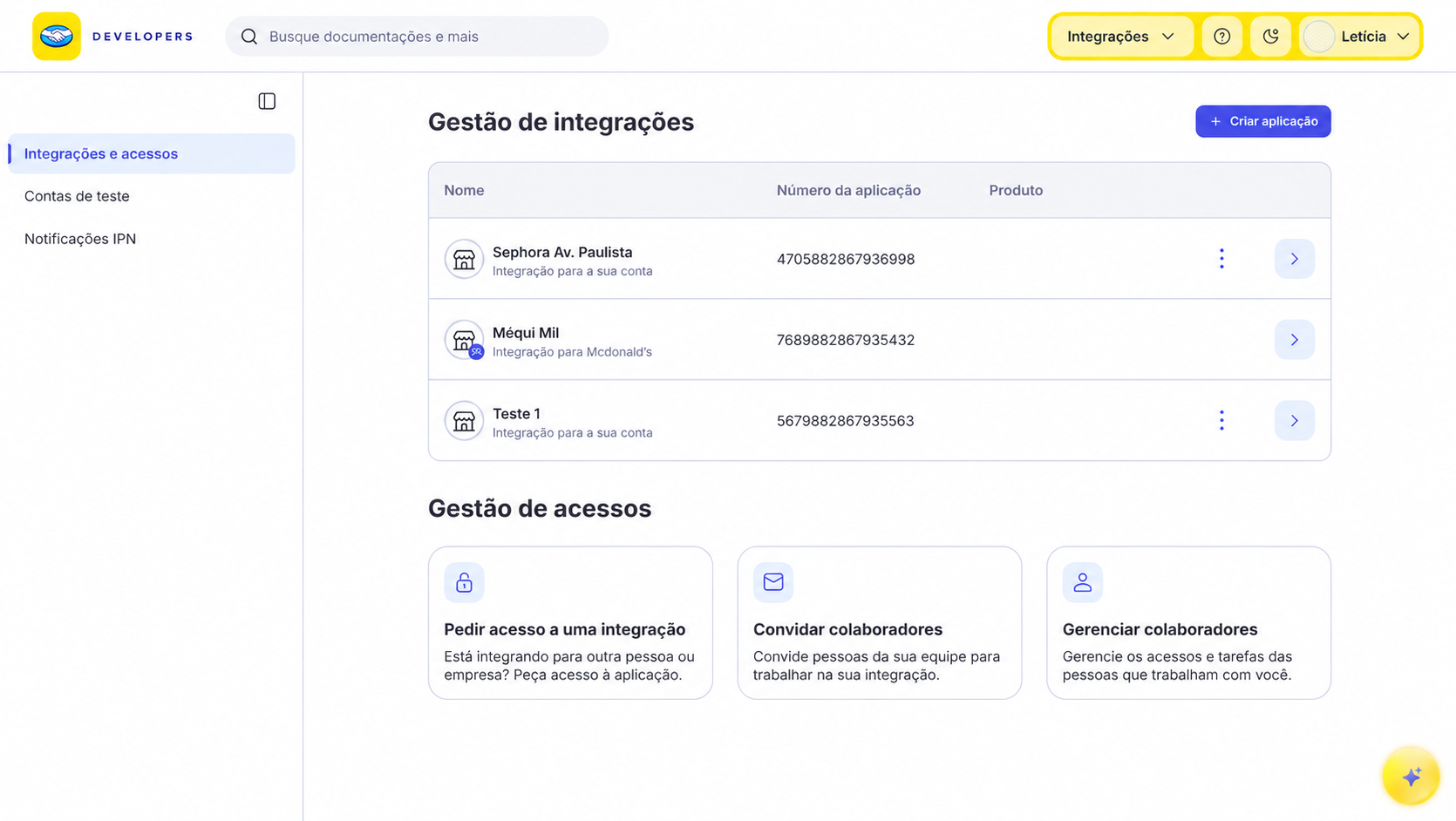
-
In the side menu, select Webhooks configuration.
-
In the Test / Production switch at the top of the screen, select Test and enter the
HTTPS URLto receive test notifications. If you want to configure production notifications, select Production and enter the productionHTTPS URL.
?client=(sellername) to the end of the indicated URL to identify the sellers.- Select the Order (Mercado Pago) event to receive notifications, which will be sent in
JSONformat via anHTTPS POSTto the URL configured for the corresponding environment.

- Finally, click Save. This will generate a unique secret signature for the application, which allows you to validate the authenticity of the received notifications and confirm that Mercado Pago sent them. The signature does not expire, and periodic renewal is not mandatory, although it is recommended. To renew it, click Reset secret signature.
To ensure that notifications are configured correctly, it is necessary to simulate their reception. To do this, follow the steps below.
- After configuring your Webhooks, click Simulate notification.
- On the simulation screen, select the URL to be tested.
- Next, choose the event type and enter the ID that will be sent in the notification body (
Data ID).
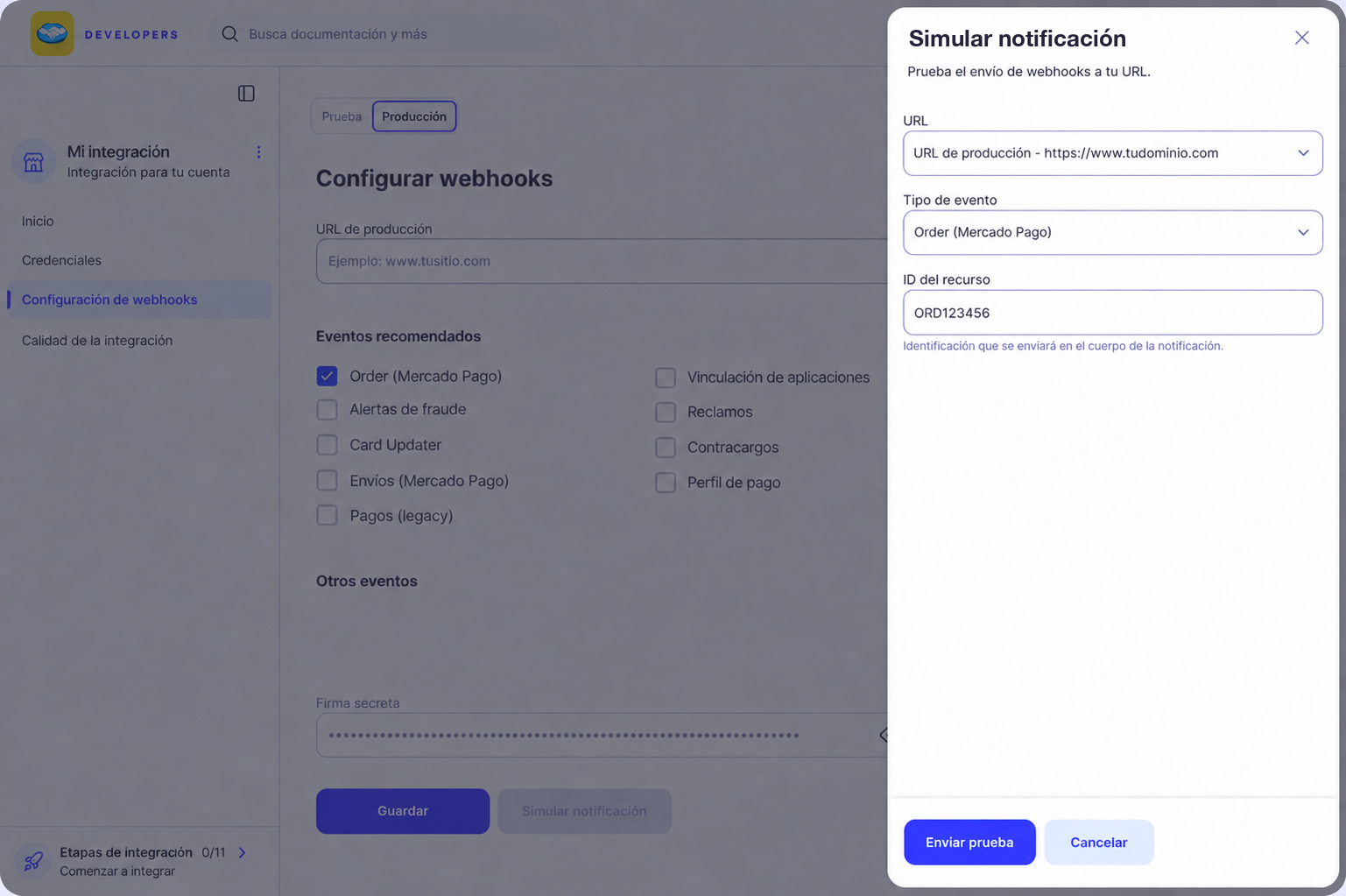
- Finally, click on Send test to verify the request, the response provided by the server, and the event description. You will receive a response as shown in the example below, representing the body of the notification received on your server.
json{
  "action": "order.processed",
  "api_version": "v1",
  "application_id": "7255333517291496",
  "data": {
    "currency_id": "ARS",
    "external_reference": "ext_ref_1234",
    "id": "ORD01M28P44G5FG8RJPM579EH56FV",
    "items": [
      {
        "external_code": "6754960",
        "quantity": 1
      }
    ],
    "status": "processed",
    "status_detail": "accredited",
    "total_amount": "200.00",
    "total_paid_amount": "200.00",
    "transactions": {
      "payments": [
        {
          "amount": "200.00",
          "id": "PAY01M28P44GDSD4JYTSK5SYZT6BH",
          "paid_amount": "200.00",
          "payment_method": {
            "id": "master",
            "installments": 1,
            "type": "credit_card"
          },
          "reference": {
            "id": "000fkonfh0"
          },
          "status": "processed",
          "status_detail": "accredited"
        }
      ]
    },
    "type": "online",
    "version": 1
  },
  "date_created": "2026-09-11T16:52:02.736053815Z",
  "live_mode": true,
  "type": "order",
  "user_id": "11111111"
}
To review how notifications are working, open the application and select the Webhooks tab under Home. Use the Test / Production switch to view notifications for the selected environment.
From there, you can filter notification deliveries, review their date, delivery status, action, event, and resource ID, and check delivery and response-time metrics. In Test, data updates in real time.
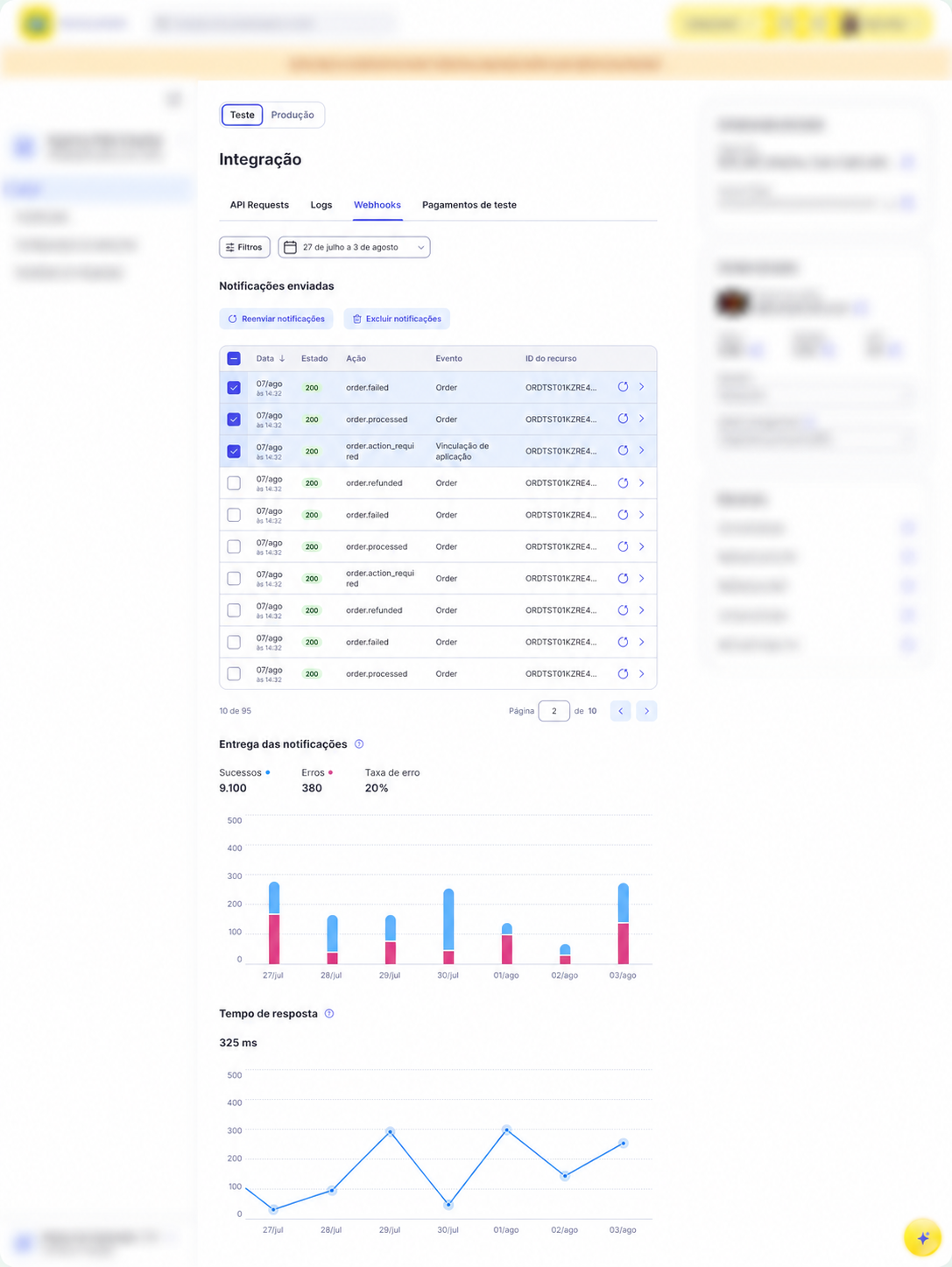
To review the delivery data and notification body, select a notification from the table to open its details.
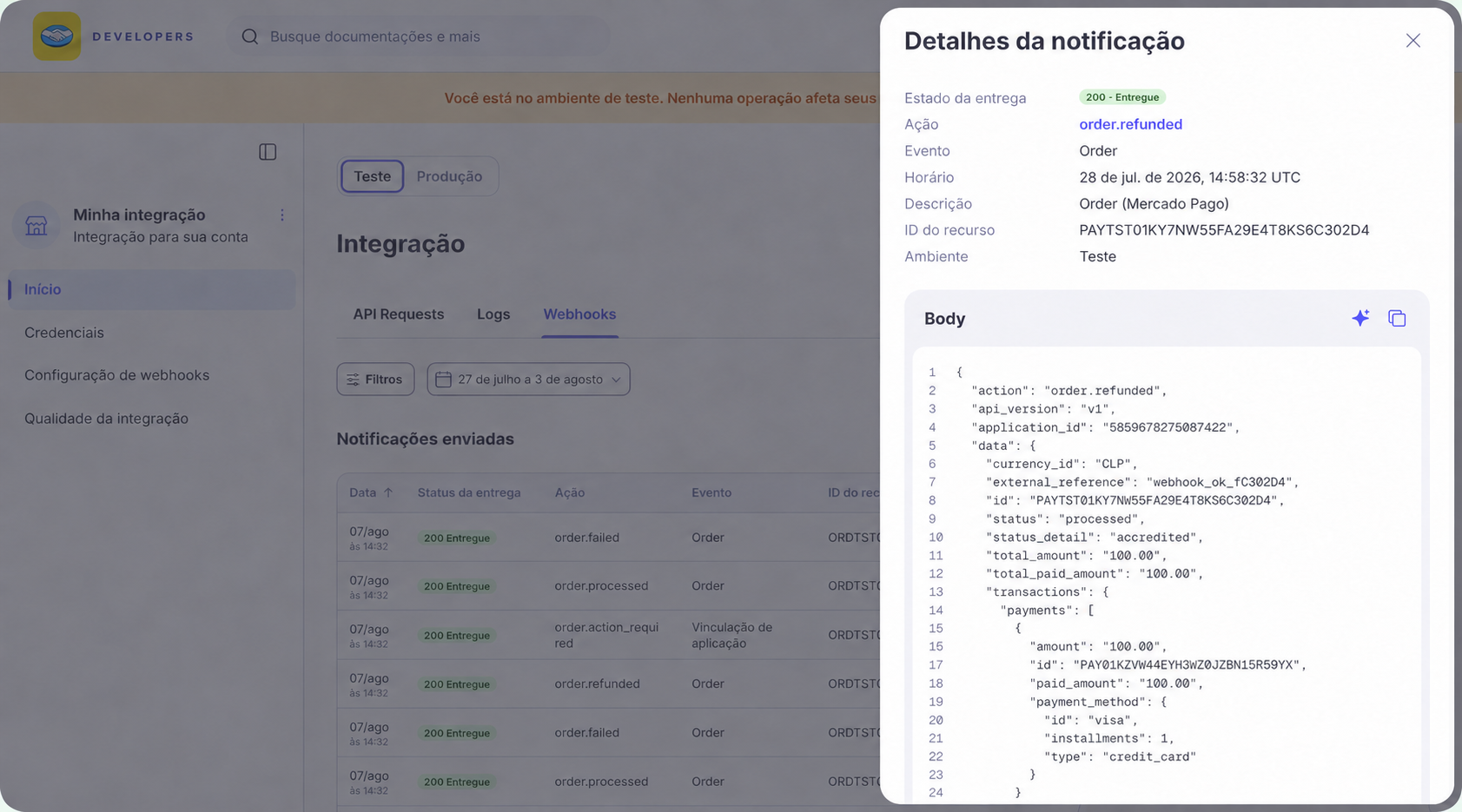
To resend one or more notifications, select them in the table and click Resend notifications.
Validating the origin of a notification is essential to ensure the security and authenticity of the received information. This process helps prevent fraud and ensures that only legitimate notifications are processed.
Mercado Pago will send a notification similar to the example below for a order topic alert. This example includes the complete notification, which contains the query params, the body, and the header of the notification.
- Query params: These are query parameters that accompany the URL. In the example, we have
data.id=ORD01M28P44G5FG8RJPM579EH56FVandtype=order. - Body: The notification body contains detailed information about the event and the order, including
action,data.status,data.status_detail, anddata.transactions.payments. - Header: The header contains important metadata, including the secret signature of the notification
x-signature.
notificationPOST /test?data.id=ORD01M28P44G5FG8RJPM579EH56FV&type=order HTTP/1.1
Host: test.requestcatcher.com
Accept: */*
Accept-Encoding: *
Connection: keep-alive
Content-Type: application/json
Newrelic: eyJ2IjpbMCwxXSwiZCI6eyJ0eSI6IkFwcCIsImFjIjoiOTg5NTg2IiwiYXAiOiI5NjA2MzYwOTQiLCJ0eCI6ImY4MzljZjg4ODg2MGRmZTIiLCJ0ciI6ImMwOGMwZGMyMjNjZDY2YjJkZWQwMjUxZmYxNWNiNGQ1IiwicHIiOjEuMjUwMzIsInNhIjp0cnVlLCJ0aSI6MTc0Mjg0MjU4MDE2NCwiaWQiOiIxOGI2NDcxNjNkNzI3NjU4IiwidGsiOiIxNzA5NzA3In19=
Traceparent: 00-c08c0dc223cd66b2ded0251ff15cb4d5-18b647163d727658-01
Tracestate: 1709707@nr=0-0-989586-960636094-18b647163d727658-f839cf888860dfe2-1-1.250320-1742842580164
User-Agent: restclient-node/4.15.3
X-Request-Id: 2066ca19-c6f1-498a-be75-1923005edd06
X-Rest-Pool-Name: /services/webhooks.js
X-Retry: 0
X-Signature: ts=1742505638683,v1=ced36ab6d33566bb1e16c125819b8d840d6b8ef136b0b9127c76064466f5229b
X-Socket-Timeout: 22000
{"action":"order.processed","api_version":"v1","application_id":"7255333517291496","data":{"currency_id":"ARS","external_reference":"ext_ref_1234","id":"ORD01M28P44G5FG8RJPM579EH56FV","items":[{"external_code":"6754960","quantity":1}],"status":"processed","status_detail":"accredited","total_amount":"200.00","total_paid_amount":"200.00","transactions":{"payments":[{"amount":"200.00","id":"PAY01M28P44GDSD4JYTSK5SYZT6BH","paid_amount":"200.00","payment_method":{"id":"master","installments":1,"type":"credit_card"},"reference":{"id":"000fkonfh0"},"status":"processed","status_detail":"accredited"}]},"type":"online","version":1},"date_created":"2026-09-11T16:52:02.736053815Z","live_mode":true,"type":"order","user_id":"11111111"}
From the received Webhook notification, you can validate the authenticity of its origin. Mercado Pago will always include the secret key in the Webhooks notifications to be received, which will allow validating their authenticity. This key will be sent in the x-signature header, similar to the example below.
plaints=1742505638683,v1=ced36ab6d33566bb1e16c125819b8d840d6b8ef136b0b9127c76064466f5229b
To confirm the validation, extract the key from the header and compare it with the key provided for your application under Webhooks configuration.
Follow one of the approaches below to validate the authenticity of the notification.
The official SDK implements HMAC-based Webhook Signature Verification to authenticate the origin of each received notification.
To get your secret key (secret), open the application and select Webhooks configuration from the side menu. Then reveal the Secret signature.
<?php
use MercadoPago\Webhook\WebhookSignatureValidator;
use MercadoPago\Exceptions\InvalidWebhookSignatureException;

try {
    WebhookSignatureValidator::validate(
        $_SERVER['HTTP_X_SIGNATURE'],
        $_SERVER['HTTP_X_REQUEST_ID'],
        $_GET['data_id'],
        $secret
    );
    http_response_code(200);
} catch (InvalidWebhookSignatureException $e) {
    http_response_code(401);
}
import { WebhookSignatureValidator, InvalidWebhookSignatureError } from 'mercadopago';
try {
WebhookSignatureValidator.validate({
xSignature: req.headers['x-signature'],
xRequestId: req.headers['x-request-id'],
dataId: req.query['data.id'],
secret,
});
res.sendStatus(200);
} catch (err) {
if (err instanceof InvalidWebhookSignatureError) res.status(401).end();
else throw err;
}from mercadopago.webhook import WebhookSignatureValidator, InvalidWebhookSignatureError
try:
WebhookSignatureValidator.validate(
request.headers.get(“x-signature”),
request.headers.get(“x-request-id”),
request.args.get(“data.id”),
secret,
)
return “”, 200
except InvalidWebhookSignatureError:
return “”, 401import “github.com/mercadopago/sdk-go/pkg/webhook”
err := webhook.ValidateSignature(
r.Header.Get(“x-signature”),
r.Header.Get(“x-request-id”),
r.URL.Query().Get(“data.id”),
secret,
)
if err != nil {
w.WriteHeader(http.StatusUnauthorized)
return
}
w.WriteHeader(http.StatusOK)using MercadoPago.Error;
using MercadoPago.Webhook;
try {
WebhookSignatureValidator.Validate(
xSignature: Request.Headers[“x-signature”],
xRequestId: Request.Headers[“x-request-id”],
dataId: Request.Query[“data.id”],
secret: secret);
return Ok();
} catch (InvalidWebhookSignatureException) {
return Unauthorized();
}import com.mercadopago.webhook.WebhookSignatureValidator;
import com.mercadopago.exceptions.MPInvalidWebhookSignatureException;
try {
WebhookSignatureValidator.validate(
request.getHeader(“x-signature”),
request.getHeader(“x-request-id”),
request.getParameter(“data.id”),
secret);
response.setStatus(200);
} catch (MPInvalidWebhookSignatureException e) {
response.setStatus(401);
}require 'mercadopago/webhook/validator'
begin
Mercadopago::Webhook::Validator.validate(
request.headers['x-signature'],
request.headers['x-request-id'],
request.params['data.id'],
secret
)
head :ok
rescue Mercadopago::Webhook::InvalidWebhookSignatureError
head :unauthorized
endWhen you receive a notification on your platform, Mercado Pago expects a response to validate that the reception was correct. To do this, you must return an HTTP STATUS 200 (OK) or 201 (CREATED).
The waiting time for this confirmation will be 22 seconds. If this response is not sent, the system will understand that the notification was not received and will make a new attempt to send it every 15 minutes until it receives the response. After the third attempt, the deadline will be extended, but the deliveries will continue to happen.
After responding to the notification, confirming its receipt, you can get all the information about the notified resource by sending a request to the endpoint /v1/orders/{id}GET.
data.status_detail: expired. In this case, the action field returns canceled or failed, depending on the final order status.With this information, you will be able to make the necessary updates to your platform, such as updating an approved payment.