
Configure Payment Profile notifications
The Payment Profile Webhooks deliver real-time notifications to your application whenever a profile linked to your integration changes. Instead of polling the API, you receive updates as they happen via HTTP POST.
This way, you can detect when a profile reaches the ready status to enable your recurring charge flow, take the necessary actions when a payment method linked to a profile is deactivated or cancelled, and keep your system always in sync with the actual profile state.
    flowchart TD
        A[Profile change] --> B{Check eligibility}
        B -->|Not eligible| C[Event discarded]
        B -->|Eligible| D["POST {your-url} with JSON payload"]
        D --> E[Your app responds HTTP 200]
        E --> F[Process event asynchronously]
Follow the steps below to configure Payment Profile notifications.
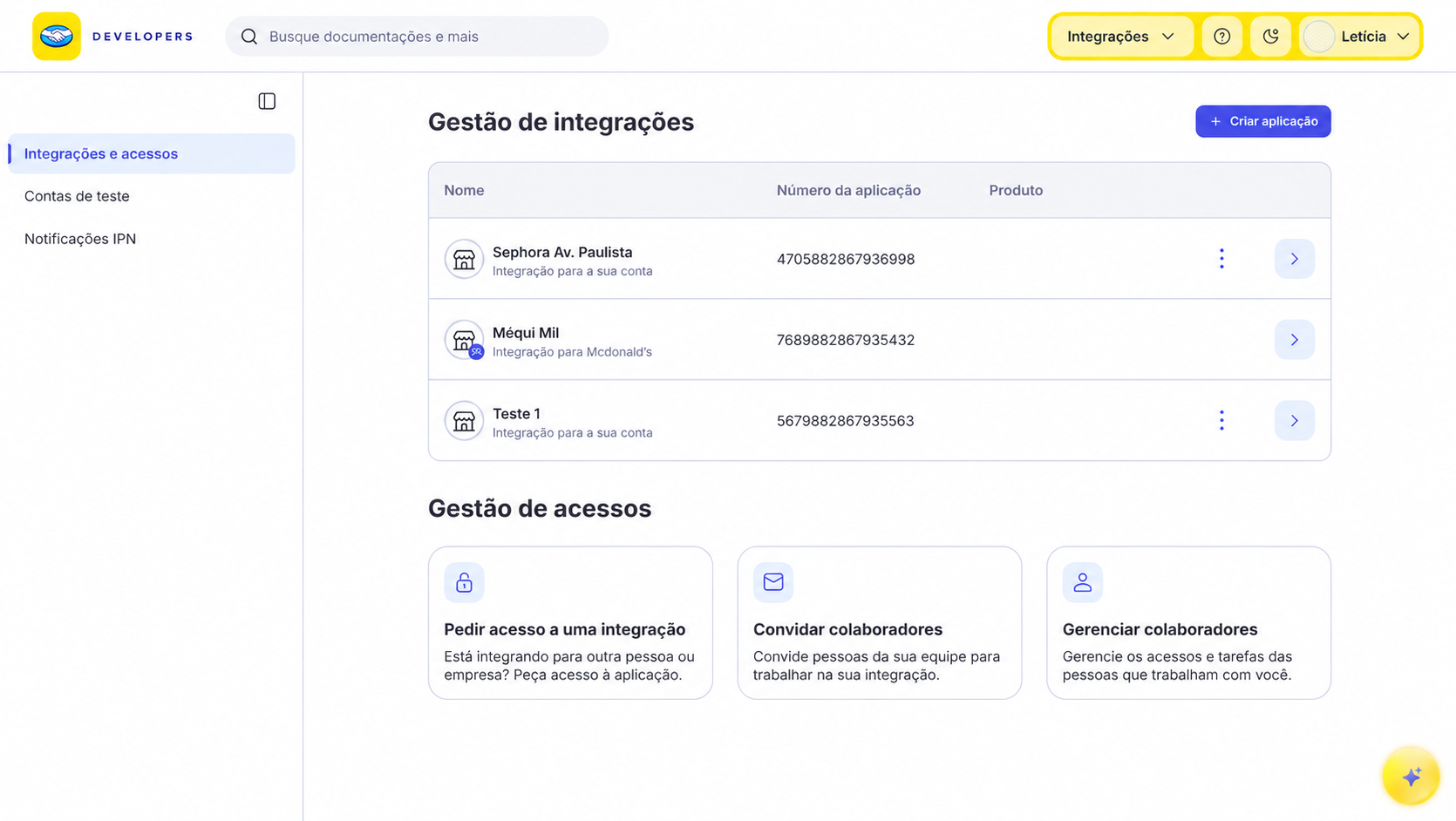
- Go to Integrations and select the application for which you want to enable notifications.
-
In the side menu, select Webhooks configuration.
-
In the Test / Production switch at the top of the screen, select Test and enter the
HTTPS URLto receive test notifications. If you want to configure production notifications, select Production and enter the productionHTTPS URL. -
Select the Payment Profile event (
payment_profile) to receive notifications for profile changes.

- Finally, click Save. This will generate a unique secret signature for the application, which allows you to validate the authenticity of the received notifications and confirm that Mercado Pago sent them. The signature does not expire, and periodic renewal is not mandatory, although it is recommended. To renew it, click Reset secret signature.
To ensure notifications are configured correctly, simulate receiving them by following the steps below.
- After configuring your Webhooks, click Simulate notification.
- On the simulation screen, select the URL to test.
- Choose the Payment Profile event type and enter the profile ID to be sent in the notification body (
Data ID). - Finally, click Send test to verify the request, the server response, and the event description.
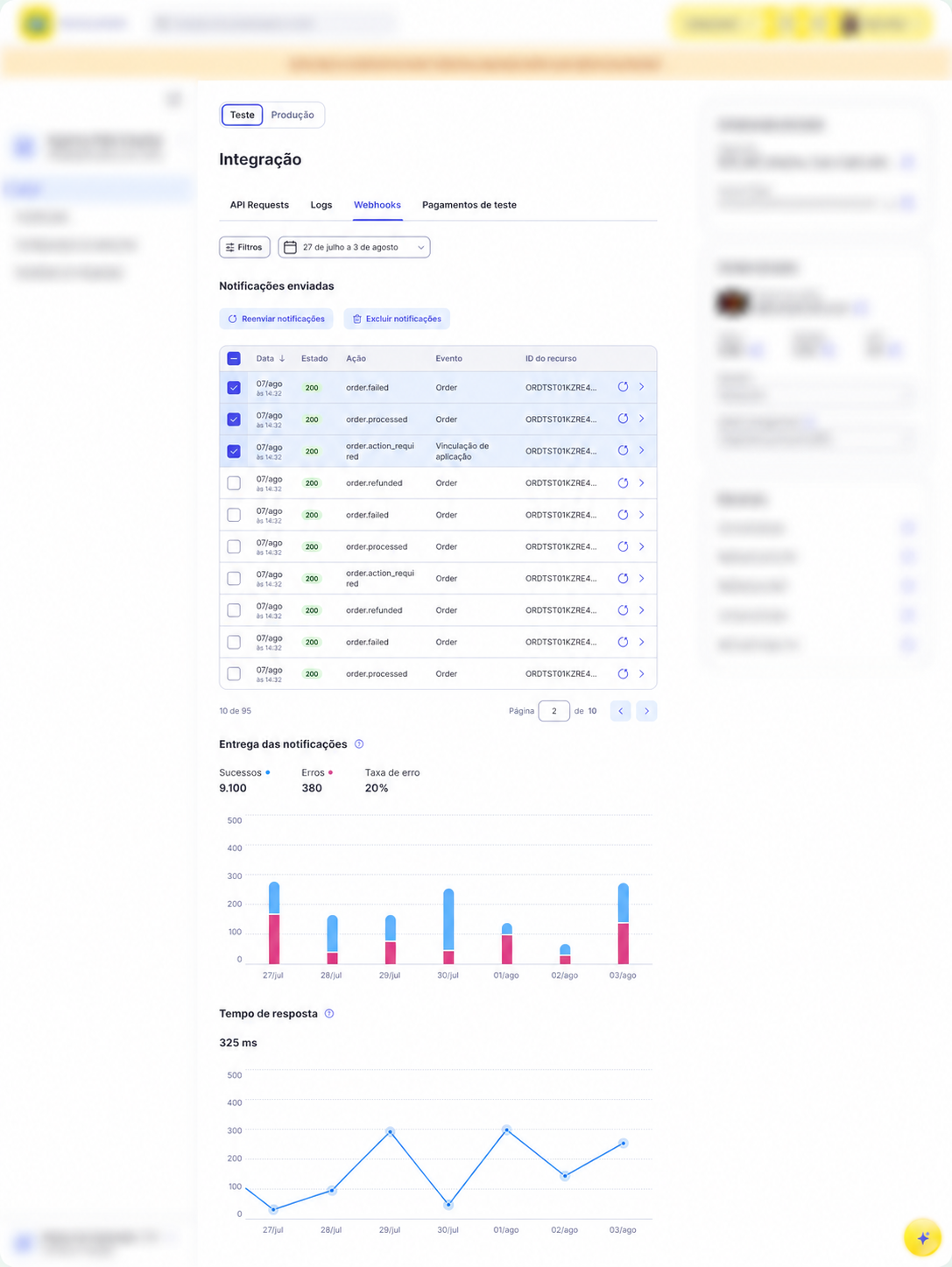
To review Payment Profile notifications, open the application and select the Webhooks tab under Home. Use the Test / Production switch to view notifications for the selected environment.
From there, you can filter notification deliveries, review their date, delivery status, action, event, and resource ID, check delivery and response-time metrics, open the details to view the notification body, and resend it when necessary. In Test, data updates in real time.
Validating the origin of a notification is essential to ensure the security and authenticity of the received information. This process helps prevent fraud and ensures that only legitimate notifications are processed.
Mercado Pago will send your server a notification similar to the example below for a payment_profile topic alert.
json{
  "id": "abc123def456",
  "type": "payment_profile",
  "action": "payment_profile.updated",
  "version": 3,
  "date_created": "2026-01-10T10:00:00.000+0000",
  "live_mode": true,
  "collector_id": "123456789",
  "application_id": "1234567890",
  "data": {
    "date_last_updated": "2026-03-27T14:30:00.000+0000",
    "status": "ready",
    "payment_methods": [
      {
        "unique_id": "pm_001",
        "type": "credit_card",
        "status": "ready",
        "default_method": true,
        "card_id": 111222333
      }
    ],
    "previous_attributes": {
      "status": "pending",
      "payment_method": {
        "unique_id": "pm_001",
        "type": "credit_card",
        "status": "rejected",
        "default_method": false,
        "card_id": 111222333
      }
    }
  }
}
| Field | Type | Presence | Description |
id | string | Always | Payment profile identifier returned by the API at creation time. |
type | string | Always | Always payment_profile. |
action | string | Always | Always payment_profile.updated, indicating that a relevant profile attribute was modified — status, payment method, or both. |
version | integer | Always | Incremental notification counter for this profile. Use it to order out-of-sequence events. |
date_created | string | Always | Profile creation date (ISO 8601). |
live_mode | boolean | Always | true in production, false in test mode. |
collector_id | string | Always | ID of the merchant associated with the profile. |
application_id | string | Always | ID of the integrating application that originated the profile. |
data | object | Always | Details of the change that occurred. |
data.date_last_updated | string | Always | Exact date and time of the profile change, in ISO 8601 format. |
data.status | string | Present only if the status was modified | New profile status. |
data.payment_methods | array | Present only if a payment method changed. | Current information about the affected payment methods. Includes the unique identifier (unique_id), payment method type (credit_card, debit_card, prepaid_card, bank_transfer), current status, and whether it is set as the default payment method for charges (default_method). If the payment method is a card, its ID (card_id) will also be present. |
data.previous_attributes | object | Absent in new payment method additions. | Previous information about the attributes that changed in the payment profile. |
previous_attributes.status | string | Conditional | Previous payment profile status. |
previous_attributes.payment_method | object | Conditional | Previous state of the affected payment method. |
For the possible values of data.status and data.payment_methods[*].status and the recommended actions for each, see Profile and payment method statuses.
From the received notification, you can validate the authenticity of its origin through the secret key. This key will be sent in the x-signature header, with the following format:
plaints=1742505638683,v1=ced36ab6d33566bb1e16c125819b8d840d6b8ef136b0b9127c76064466f5229b
To confirm the validation, extract the key from the header and compare it with the key provided for your application under Webhooks configuration.
Follow one of the approaches below to validate the authenticity of the notification.
The official SDK implements HMAC-based Webhook Signature Verification to authenticate the origin of each received notification.
To get your secret key (secret), open the application and select Webhooks configuration from the side menu. Then reveal the Secret signature.
<?php
use MercadoPago\Webhook\WebhookSignatureValidator;
use MercadoPago\Exceptions\InvalidWebhookSignatureException;

try {
    WebhookSignatureValidator::validate(
        $_SERVER['HTTP_X_SIGNATURE'],
        $_SERVER['HTTP_X_REQUEST_ID'],
        $_GET['data_id'],
        $secret
    );
    http_response_code(200);
} catch (InvalidWebhookSignatureException $e) {
    http_response_code(401);
}
import { WebhookSignatureValidator, InvalidWebhookSignatureError } from 'mercadopago';
try {
WebhookSignatureValidator.validate({
xSignature: req.headers['x-signature'],
xRequestId: req.headers['x-request-id'],
dataId: req.query['data.id'],
secret,
});
res.sendStatus(200);
} catch (err) {
if (err instanceof InvalidWebhookSignatureError) res.status(401).end();
else throw err;
}from mercadopago.webhook import WebhookSignatureValidator, InvalidWebhookSignatureError
try:
WebhookSignatureValidator.validate(
request.headers.get("x-signature"),
request.headers.get("x-request-id"),
request.args.get("data.id"),
secret,
)
return "", 200
except InvalidWebhookSignatureError:
return "", 401import "github.com/mercadopago/sdk-go/pkg/webhook"
err := webhook.ValidateSignature(
r.Header.Get("x-signature"),
r.Header.Get("x-request-id"),
r.URL.Query().Get("data.id"),
secret,
)
if err != nil {
w.WriteHeader(http.StatusUnauthorized)
return
}
w.WriteHeader(http.StatusOK)using MercadoPago.Error;
using MercadoPago.Webhook;
try {
WebhookSignatureValidator.Validate(
xSignature: Request.Headers["x-signature"],
xRequestId: Request.Headers["x-request-id"],
dataId: Request.Query["data.id"],
secret: secret);
return Ok();
} catch (InvalidWebhookSignatureException) {
return Unauthorized();
}import com.mercadopago.webhook.WebhookSignatureValidator;
import com.mercadopago.exceptions.MPInvalidWebhookSignatureException;
try {
WebhookSignatureValidator.validate(
request.getHeader("x-signature"),
request.getHeader("x-request-id"),
request.getParameter("data.id"),
secret);
response.setStatus(200);
} catch (MPInvalidWebhookSignatureException e) {
response.setStatus(401);
}require 'mercadopago/webhook/validator'
begin
Mercadopago::Webhook::Validator.validate(
request.headers['x-signature'],
request.headers['x-request-id'],
request.params['data.id'],
secret
)
head :ok
rescue Mercadopago::Webhook::InvalidWebhookSignatureError
head :unauthorized
endWhen you receive a notification on your platform, Mercado Pago expects a response to validate that the receipt was correct. To do so, return an HTTP STATUS 200 or 201 within 22 seconds of receipt.
We recommend that you first respond with a 200 or 201, and then process the notification on the server, to avoid duplicate notifications.
If this response is not sent, the system will make new delivery attempts every 15 minutes. After the first failures, the interval progressively increases, but deliveries continue until the notification is confirmed.
After confirming receipt, process the event asynchronously. If your integration depends on the full profile state, query the API by sending a request to /v1/customers/{customerId}/payment-profiles/{id}GET with the id field received in the notification.
Never infer the complete profile state exclusively from the notification data, as it only delivers the fields that changed.